
BaldrickAudio Manual
Last updated 23 Oct 2026
Getting started
You’ve just got your board through the post and you are really excited about getting started! WE KNOW, We’ve been there. These easy to follow steps will get you started in minutes!
Always ensure your power supply is disconnected before making any connections. Double-check all wiring before powering on.
Step 1: Plugging in Your Controller
Always Use a Power Supply
Never, ever EVER EVER plug your controller directly into the wall outlet, it will go bang and you’ll have to buy another one and explain to your partner what that burn mark on the kitchen table is. The BaldrickAudio has a 2 port screw terminal marked Power Input which can handle 5v to 24v DC. You’ll notice that a British plug has three wires and our power jacks inputs only have two - that’s because you need to put a power supply in between them. We recommend the use of Meanwell Power Supplies.
Step 2: Installing the Firmware
Initial Firmware Setup
When your controller arrives it will be in a ‘sleeping state’ - you just need to plug it into your network and head to http://baldrickboard.local (if your DNS doesn’t accept that then just look for it on your network).
How to Install
To put it simply, press the button that says Lets Go then go and have a brew, the controller will connect to our server, download the latest firmware and automatically install it, once it’s done the page will refresh and you can start connecting things.
You must plug the board into your network with an Ethernet cable for the initial firmware download (or make sure your computer can give it an IP address and internet access).
How Do I Update After That?
When you go to the Web interface and look at the stats section, you’ll see the version number, if there is a new version, you can click that and it will automatically update in a similar interface to how this initial install works.
Step 3: Preparing Your SD Card
The BaldrickAudio plays sounds from the SD card in the slot marked SD CARD GOES HERE. For now, copy your files onto the card from your PC. Uploading through the web interface will come in a future firmware release.
- Card: formatted as FAT32. We’ve tested cards up to 32GB.
- Files: .wav, 44.1kHz, 16-bit, stereo. Other file formats will come later.
If you want a quieter background track playing with a louder sound over the top, set the volume difference in the audio files themselves for now (Audacity is great for this). A future firmware release will let you adjust the volume of each track in the web interface.
Step 4: Connecting Speakers
Using the Built-in Amp
The built-in 25W amp has two 2 port Phoenix connectors, marked L AMP and R AMP. Connect your left and right speakers to them, matching the + on the board to the positive wire of your speaker.
Using the Pre-amp Output
If you’d rather use your own amplifier or a powered speaker, use the pre-amp output on the 3 pin XLR (the one marked NOT DMX…) or the 3.5mm jack.
The pre-amp output is exactly that, a pre-amp output. The volume control in the web interface does not affect the pre-amp volume, so set the volume on whatever you plug into it.
Step 5: Connecting Inputs
The four inputs, In1 to In4, are where your sensors and buttons go. Each one is marked V+ - In - Gnd.
- Sensors (motion sensors, beam breaks) take their power from V+ and Gnd and send their signal to In.
- Buttons go across In and Gnd. If your button has a lamp, power it from V+.
Once they are connected, each input can be set to play a sound. You can also trigger sounds remotely from your phone with Busk Board, or from other Baldrick Boards over The Turnip Network.
Step 6: Adding More Boards
The two Ethernet ports are joined by a built-in switch. Plug your show network into one and run a cable from the other to your next board, instead of running a cable back to your network switch for each one.
Technical specifications
At a glance
Board components
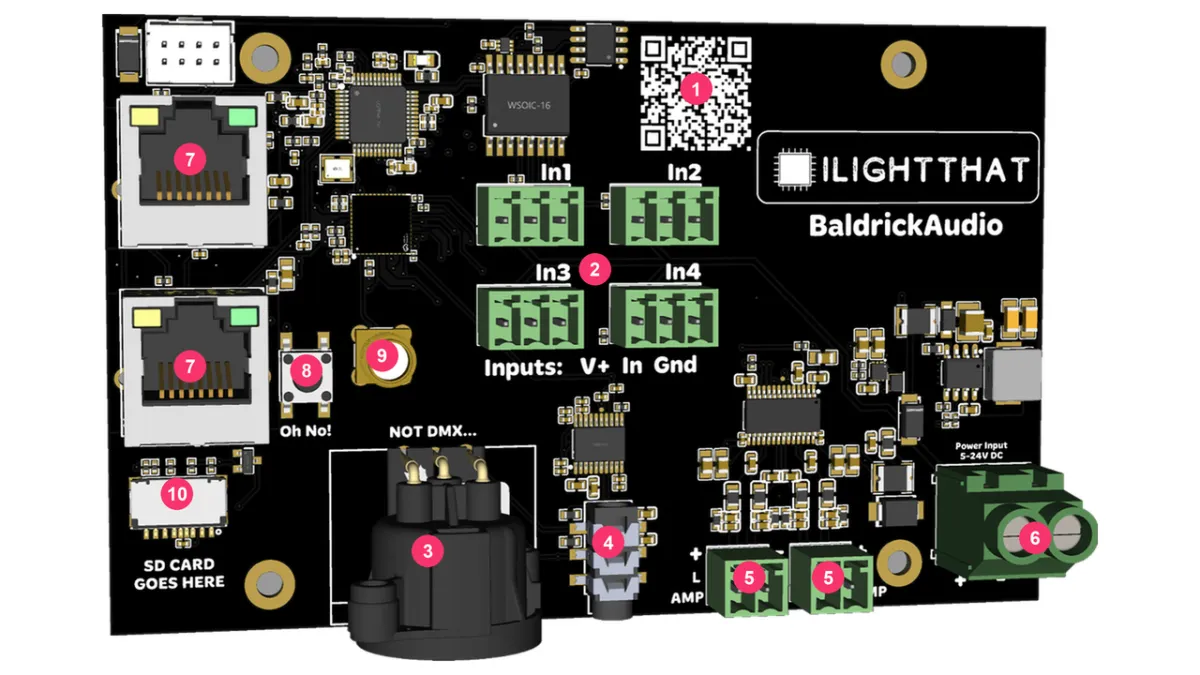
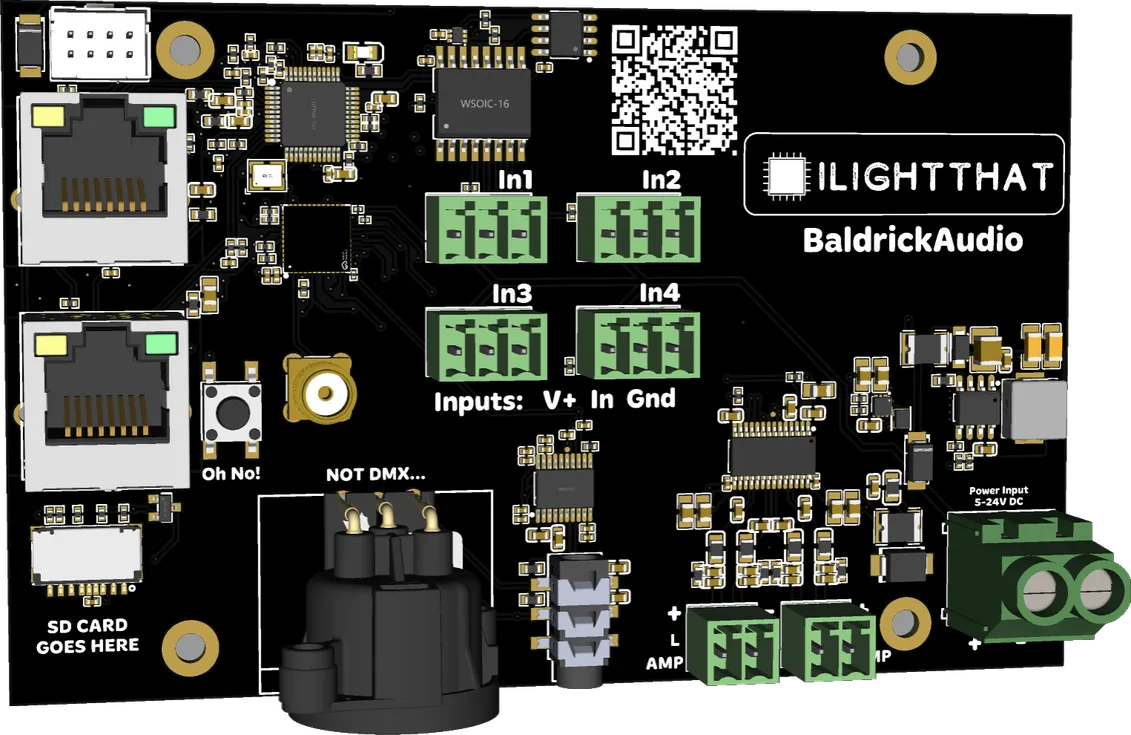
- QR Code — An easy to scan QR code which will take you to these docs for easy troubleshooting.
- Inputs (In1 to In4) — Connect buttons and sensors to trigger your sounds. Ordered V+, In, Gnd.
- Pre-amp output, 3 pin XLR — Line level audio for your own amp or powered speakers. It’s marked NOT DMX… for a reason.
- Pre-amp output, 3.5mm jack — The same pre-amp signal on a headphone-style jack.
- Speaker outputs (L AMP and R AMP) — 2 port Phoenix connectors from the built-in 25W amp.
- Power Input — 5v - 24v DC, steps down to power the components.
- Ethernet ports — Two 100Mb ports joined by a built-in switch. Plug one into your show network and use the other to daisy-chain to your next board.
- Oh No! button — Did you break our board? Press and hold this for 10 seconds on boot to reset to factory settings.
- WiFi antenna connector — Screw on an external WiFi antenna for Busk Board, CunningFX and board control over WiFi.
- SD card slot — Where your sound files live. FAT32, tested up to 32GB.
The BaldrickAudio has the same medium footprint as the Baldrick8, so you can reuse your Baldrick8 bases and mounts. DO NOT DRILL out these holes to make them fit the screws you’ve got already, doing this will void any warranty.
Web interface
Every BaldrickAudio has a web UI. This page is what the buttons and pages actually do.
The BaldrickAudio shares its web interface with the rest of the Baldrick family, so the screenshots on this page come from the BaldrickInput8.
Stats Dashboard
System Information
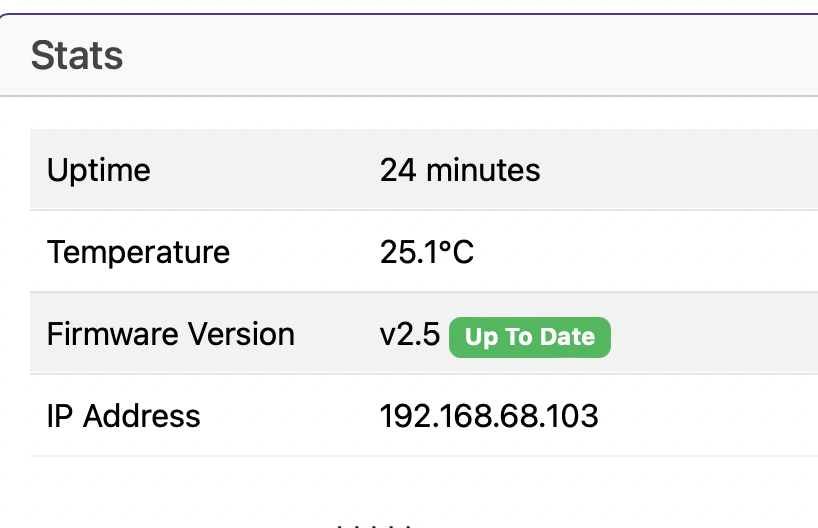
The Stats board gives you a heads up as to what’s going on with your controller.
<h5>Uptime</h5>
<p>Tells you how long your controller has been powered on <em>(this is useful in June to remind you that you forgot to turn it off over christmas)</em></p>
<h5>Temperature</h5>
<p>With an onboard sensor, this gives you an indication of the board temperature <em>(in Celsius because water freezes at 0, not 32.. how does that make sense?)</em><br><br>Generally, PCBs and components are good for -40 to +85°C. Anything below 60°C on this board is fine and nothing to worry about. If the temp is above that, try blowing on it like you would a hot chip out of the oven.</p>
<h5>Firmware Version</h5>
<p>The BaldrickAudio is pretty new in the world of controllers and we've got a LOT of features left to add, this will let you know your current version and if there is a version to upgrade to.<br><br><em>(clicking the new version will upgrade it in place then restart the controller)</em></p>
<h5>IP Address</h5>
<p>It would be pretty silly to have a controller information box without showing you the IP Address of the controller wouldn't it? That would be like launching a controller without being able to manage the networking.</p>
Audio Settings
Volume, Sound Files and Busk Board
Volume
Sets the volume of the built-in amp. It does not change the pre-amp output on the XLR and 3.5mm jack, so set the volume on whatever you’ve plugged into those.
Background Audio
The BaldrickAudio can play a track in the background with your triggered sounds over the top. For now, if you want the background quieter than the sounds on top, set the volume difference in the audio files themselves (Audacity is great for this). A future firmware release will let you set the volume of each track here.
Sound Files
Your sounds come from the SD card, as .wav files at 44.1kHz, 16-bit, stereo. For now, copy them onto the card from your PC. Uploading through the web interface will come in a future firmware release.
Busk Board
Trigger your sounds from your phone over WiFi with Busk Board.
Input Configuration
External Input Triggers
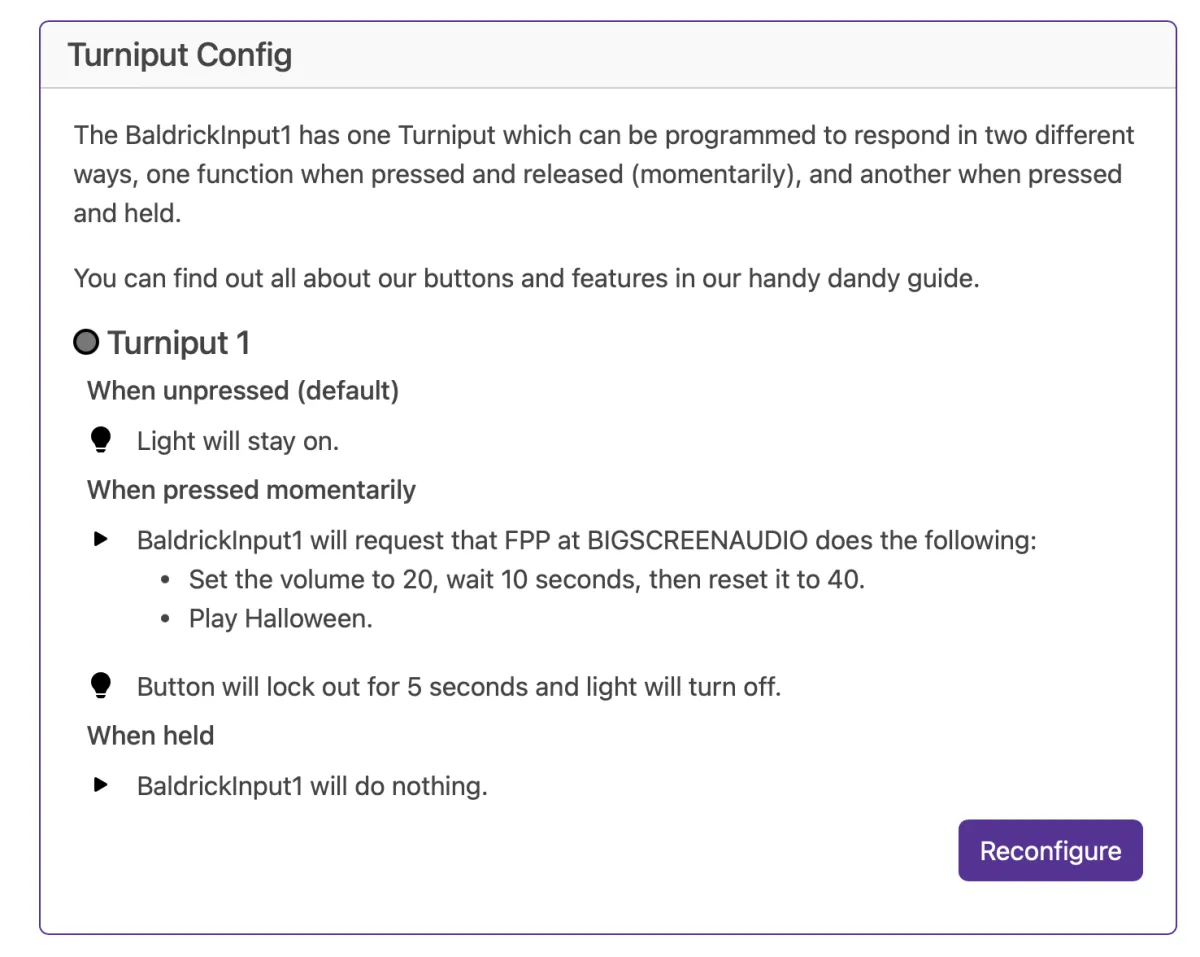
The BaldrickAudio comes with four inputs to attach external triggers (motion sensors, beam breaks, buttons). Set each one to play a sound when it’s triggered, or to do any of the other actions below.
Available Actions
  <h6 id="fpp-integration">FPP Integration</h6>
  <p>Control FPP (Falcon Pi Player) instances, change volume, play songs/playlists, or call FPP API directly.</p>
  <h6>Toggle Test Mode</h6>
  <p>Quickly enable any test mode at a specific brightness for quick prop testing.</p>
  <h6>BaldrickSwitchy Control</h6>
  <p>Turn on/off BaldrickSwitchy ports for specific durations (bubble machines, snow machines, etc.).</p>
  <h6>BaldrickDMX Presets</h6>
  <p>Activate preset commands on your BaldrickDMX for moving heads, effects, etc.</p>
  <h6 id="http-url-calls">HTTP URL Calls</h6>
  <p>Call web APIs from simple triggers - perfect for custom integrations.</p>
  <h6>Do Nothing</h6>
  <p>Sometimes you set an input to do something and think "oh actually no, that's not what I want."</p>
Networking Configuration
Good Defaults, Easy Config
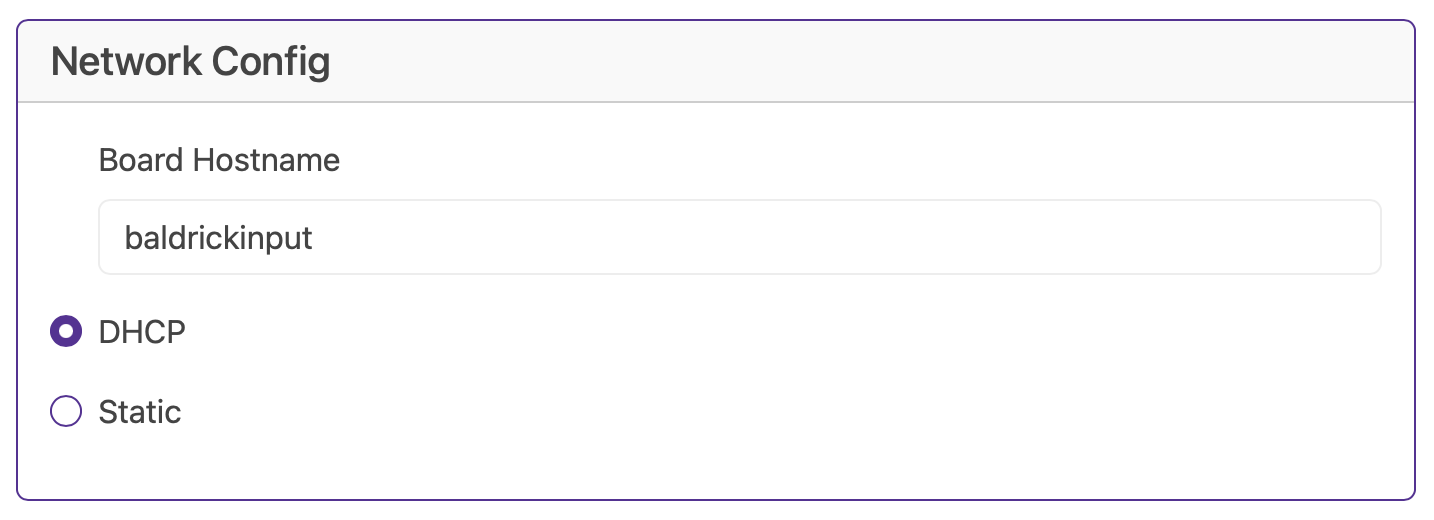
<b>Note</b> WiFi on the Input8 is currently in testing and will be released soon.
<h5>Hostname</h5>
<p>The default hostname is baldrickboard (hence baldrickboard.local). If you have one BaldrickAudio then it's completely fine to keep this as it is, however if like us you want to collect a few of them, then we'd recommend you change this to something like <em>frontgarden</em> or <em>upstairsroof</em><br><br><strong>(Just a reminder that hostnames should be lowercase without spaces)</strong></p>
<h5>DHCP / STATIC</h5>
<p>The default option is DHCP (which is Dynamic Host Configuration Protocol but you don't need to know that) which basically means your router or computer gives the board an I.P. address. This is great for initial setup but when you want to run a show it's best to switch it to STATIC, that's where your controller tells the router / computer "This is my IP".</p>
<h5>IP Address</h5>
<p>Set this to the IP address that you want the controller to be fixed to.</p>
<h5>Subnet Mask & Gateway</h5>
<p>It is more than likely that you can copy the Subnet Mask (the size of your network) and the Default Gateway (the exit point of your network) from the output of an IPconfig check.</p>
<h5>DNS Server</h5>
<p>DNS wise, typically, your default gateway is your router IP, and that more often than not, can provide your network with DNS. However, some people like to use "outside 3rd parties" DNS like google or cloudflares DNS. If you don't know about this, its probably best just to stick to DHCP.</p>
Turnip Network
The Turnip Network
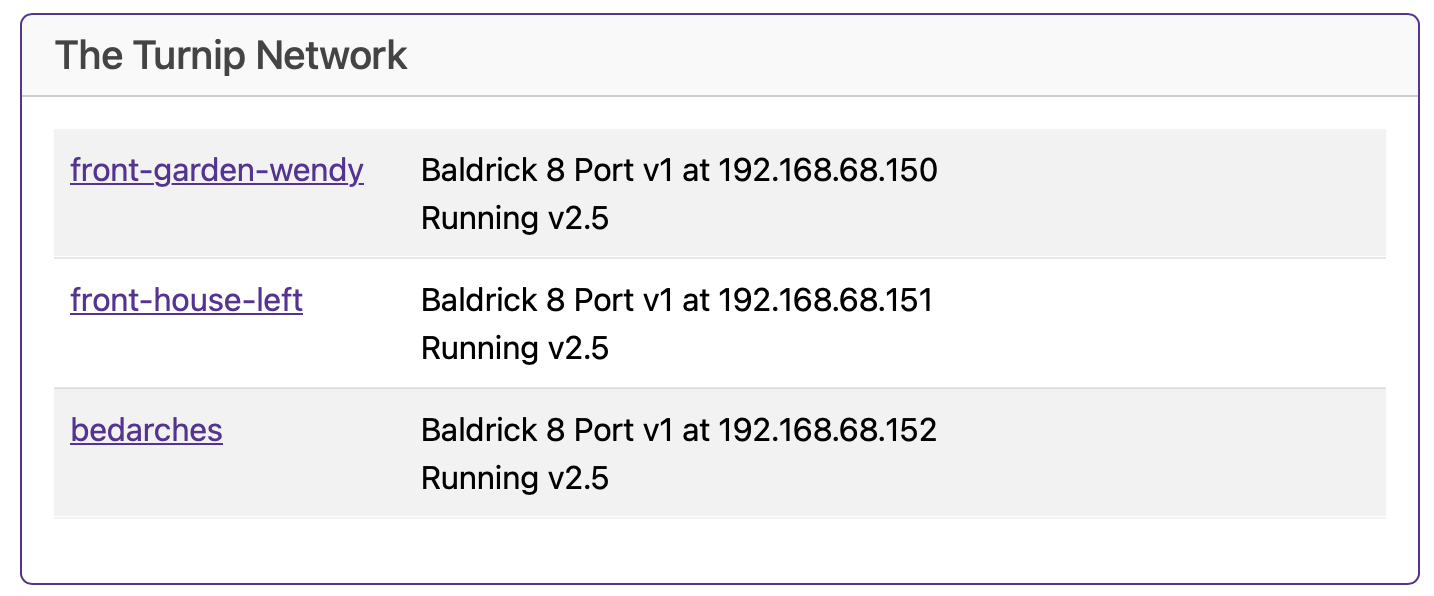
The Baldrick family of boards have developed with ease of use as one of the core principles, this lead the creation of ‘The Turnip Network’.
The BaldrickBoards will find each other on the network, allowing you to easily switch between them when doing configuration.
Test Sync allows you to enable test mode on one Baldrick board and all the others in that series will follow (so when you turn Hodgical Test Mode on one Baldrick8, it will turn on the rest of them).
Some of the Baldrick boards have buttons (or Turniputs) and these allow integration with not only all the other boards in the family, but also FPP and web hooks!
::: note It’s what those people in business suits call ‘synergy’! :::