
Baldrick Buddy is the free app for your Baldrick boards. It finds every board on your network and shows what each one is doing, then lets you test them, play their effects, change their setup and update their firmware, from a computer, iPhone, iPad or Android phone. No IP addresses to remember, and no board web pages to open one at a time.
OverviewEvery board, at a glance
Buddy finds your boards by itself and lists each one with its type, firmware and address, and what it's getting right now: DDP at 40FPS, a CunningFX preset playing, or people being counted on a BaldrickSignals board. Anything that needs fixing is at the top. If your main show player is running, you'll see what it's playing too, with Hold to stop.
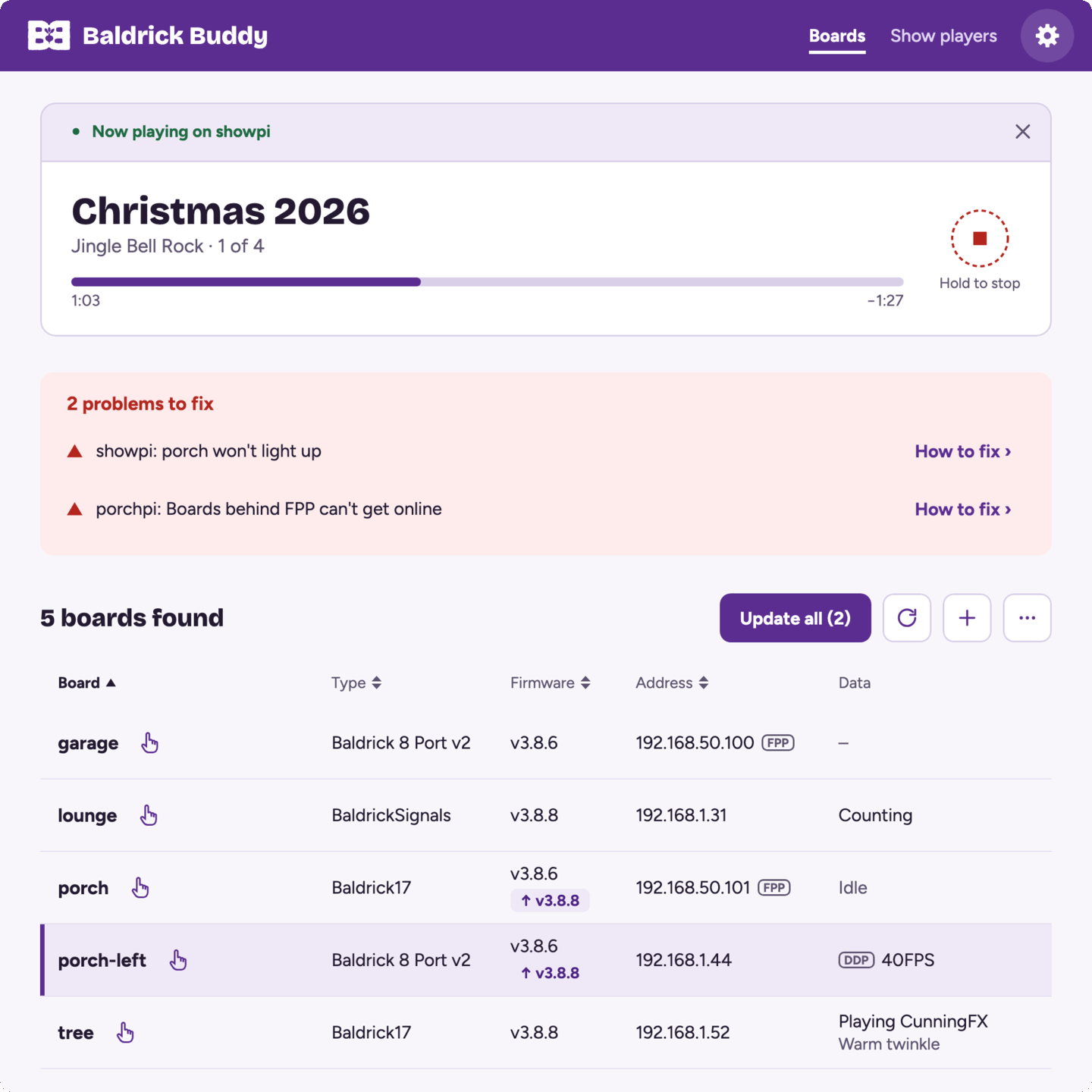
- Boards Buddy has seen before are listed as soon as it opens, and one that stops answering is marked.
- Update all updates every board that needs it, in one go.
- Poke lights a board up for five seconds, so you can find the right box in the loft.
- Add a board by its address, or have Buddy scan other subnets and VLANs your computer or phone can reach.
- With a lot of boards, search and filter the list, or sort it by any column.
FeaturesTest, play and set up
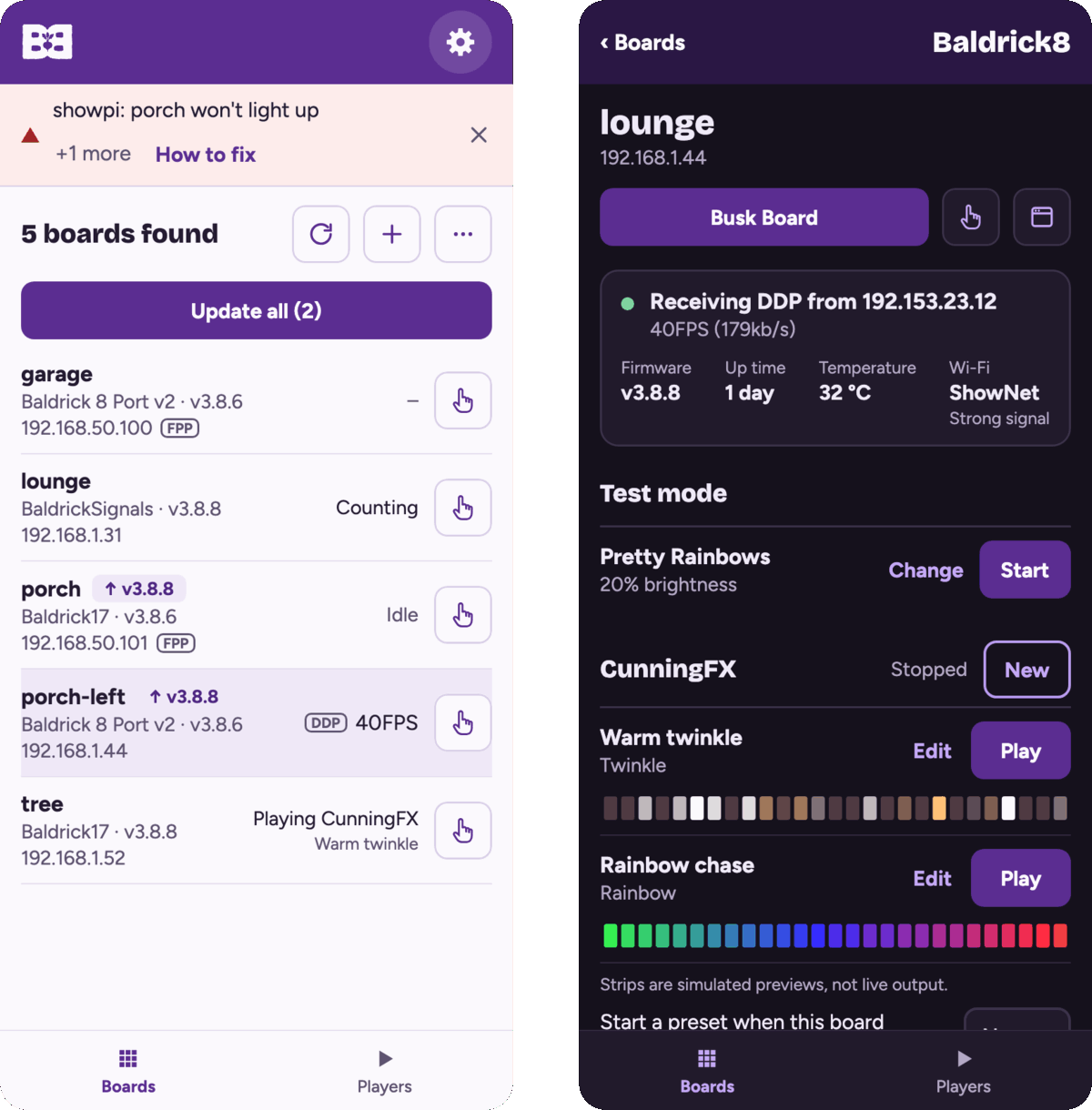
Click a board to open its page. It shows what the board is receiving, its temperature and Wi-Fi signal, and everything you can do with it.
Test mode
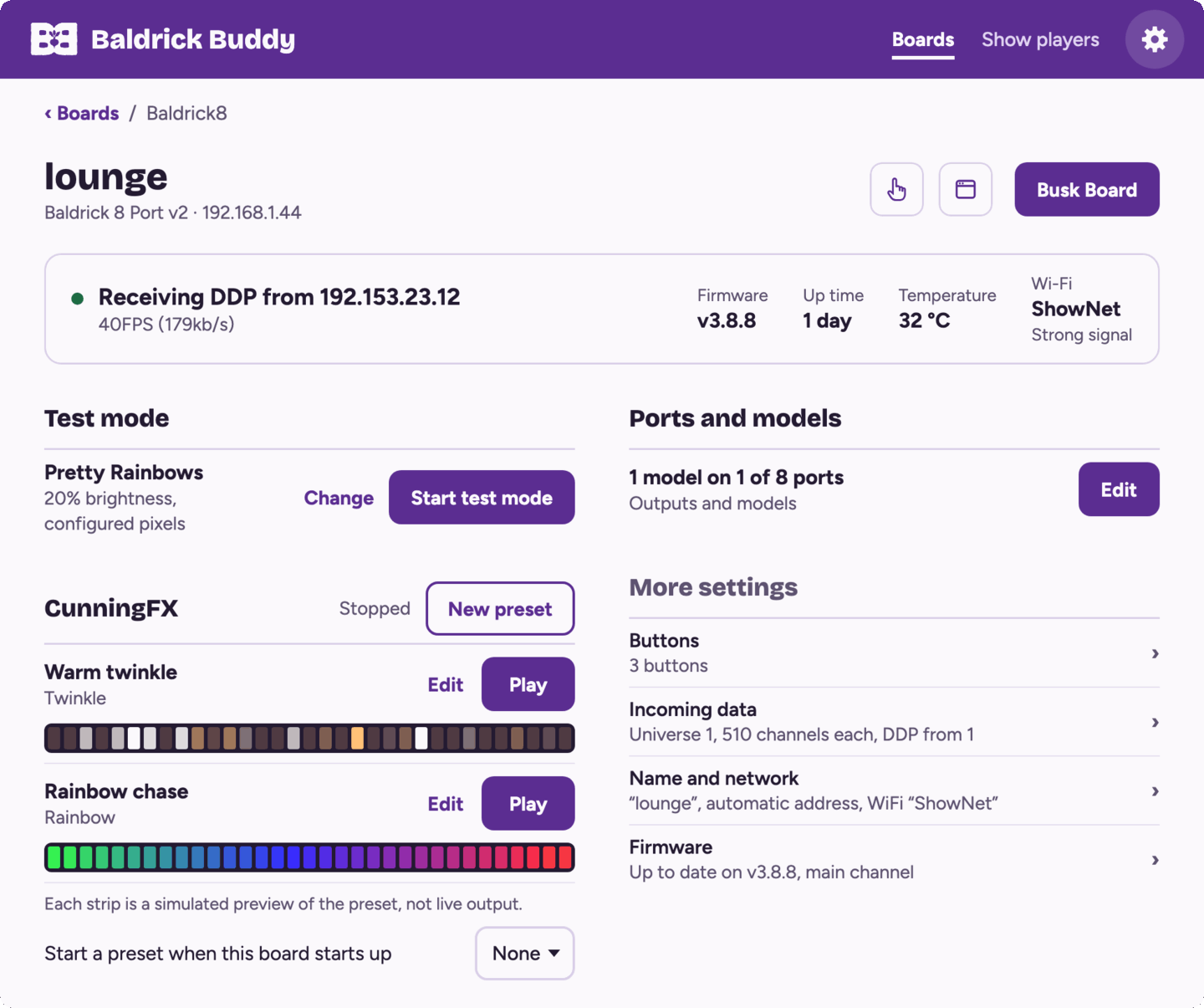
Each test is a tile that shows what it does, with a preview that moves the way the test will. Pick a colour, which pixels, the brightness and the ports. While a test is running, every change goes to the board straight away, so you can check your wiring without walking back to the computer.
CunningFX
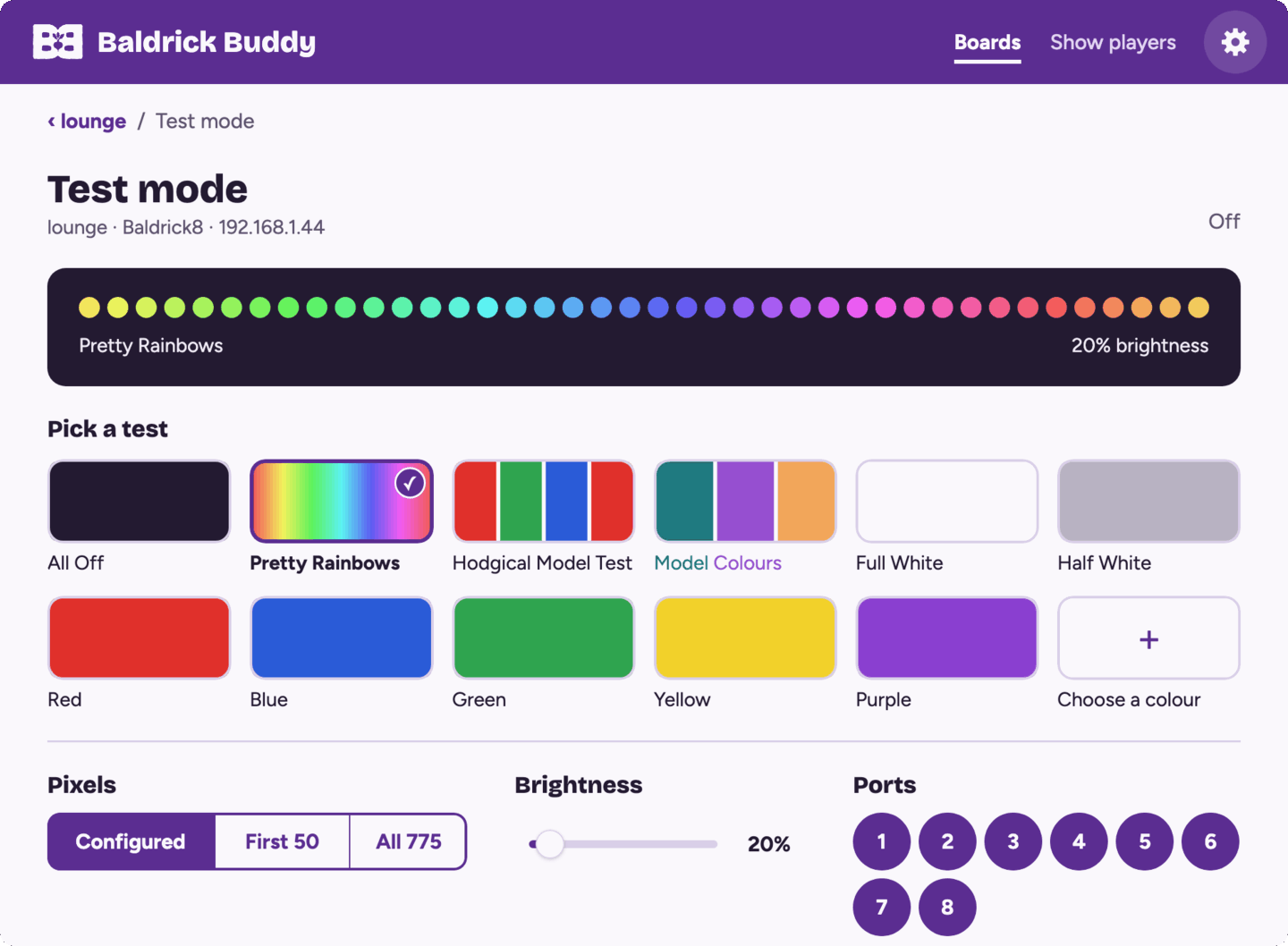
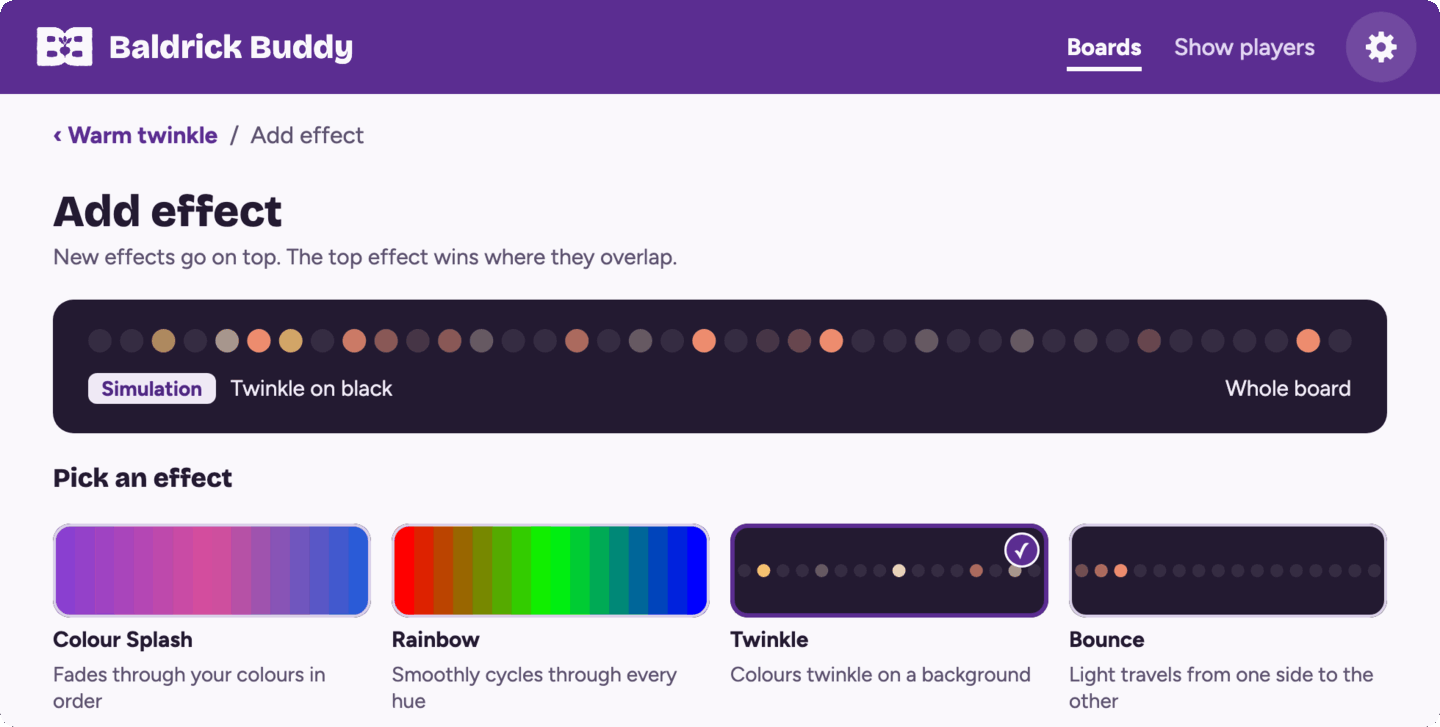
Build effects on the board itself, no sequencer needed. Every effect comes with a plain description and a simulated preview worked out from the board's own effect code. Stack effects in layers, choose colours and speed, or press Randomise (or shake your phone) to try something new. Choose a preset to start when the board powers up.
Ports and models
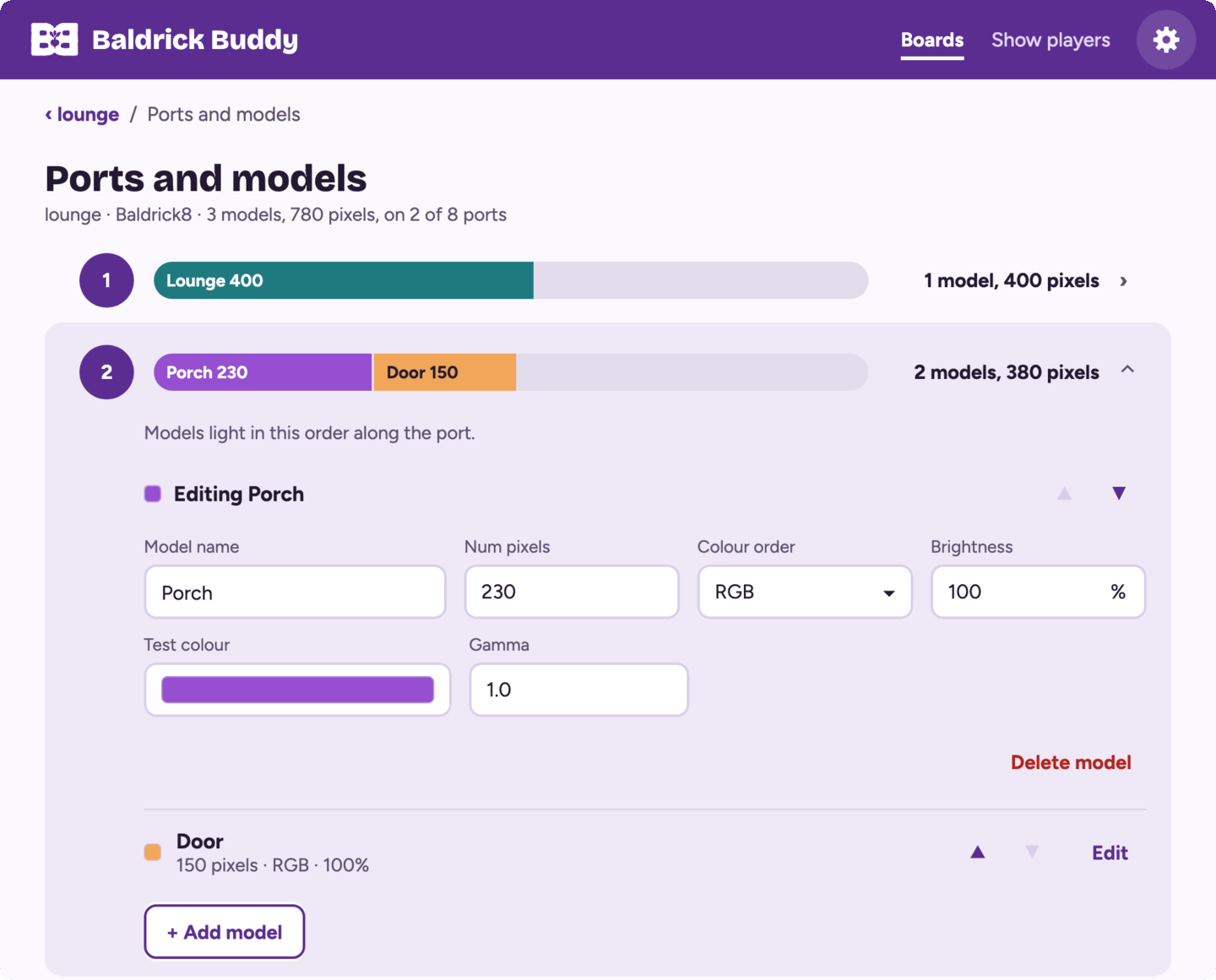
Each port is drawn as a bar of its models in the order they light, so a missing model or a wrong pixel count stands out. Open a port to add, change or reorder its models: name, pixel count, colour order, brightness, gamma and test colour.
Busk Board
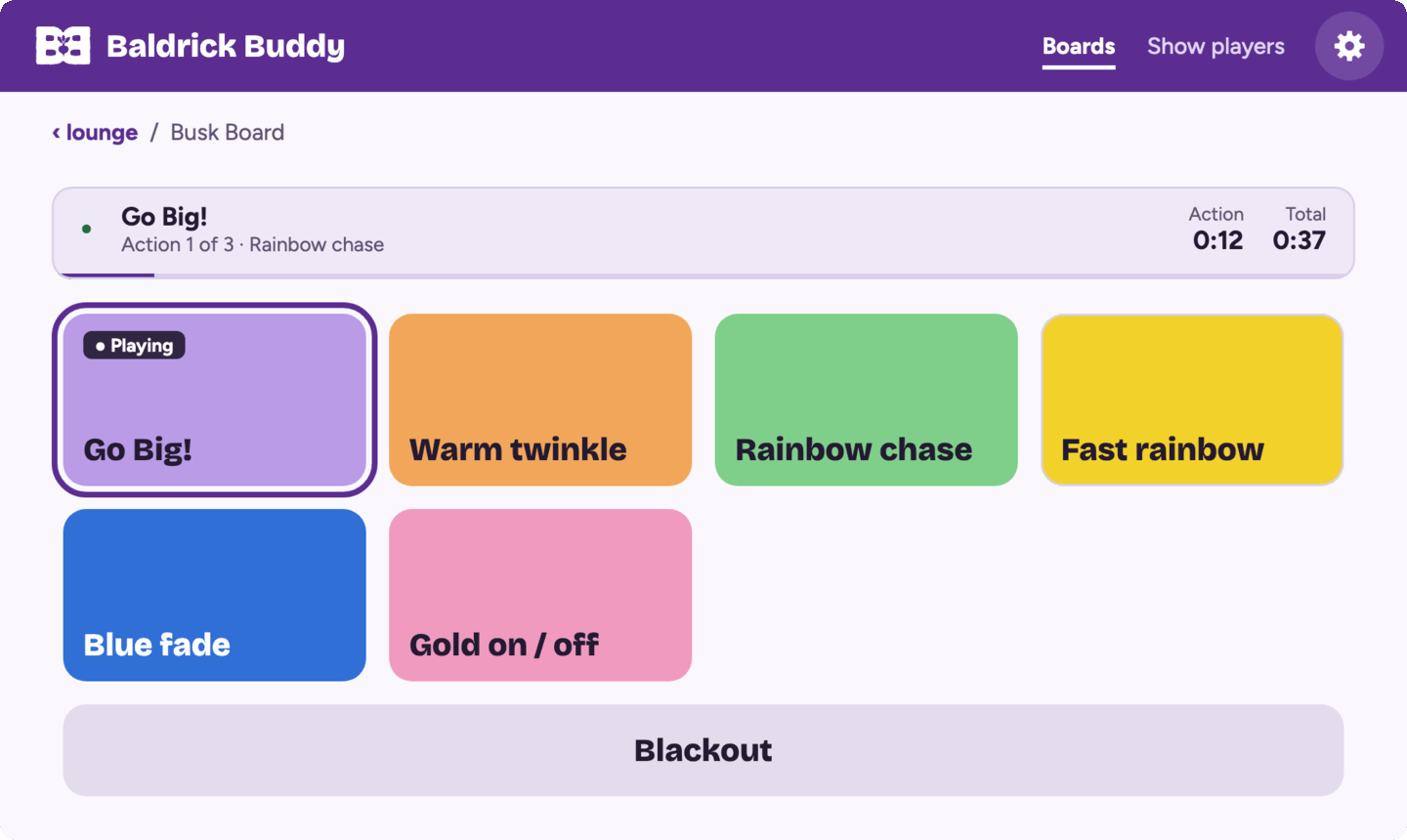
Big pads for running looks live, from your phone or computer. One runs at a time, with a bar showing what's playing and how long is left, and Blackout is always one tap away.
Everything else on the board
- Buttons: what each button does when pressed and when held, in words. The circle lights up while you press the real button, which is handy for checking wiring. A button can also control an FPP: set the volume, wait, then start a playlist or sequence.
- Incoming data: universes, channels and protocols.
- Name and network: the board's name, a fixed IP address and Wi-Fi.
- DMX presets, relays and dimmers on the boards that have them.
- BaldrickSignals: how many people are nearby, a graph of the last two hours, and the actions that start at each count.
Nothing is sent to a board until you click Save.
FPPWorks with your show player
The Show players tab finds the FPPs (Falcon Player) on your network. Each one has a page with what it's playing and its volume, the boards behind it, its own warnings and its CPU temperature, with a nudge if it's running hot. Buddy then checks the two things that most often stop a show working.
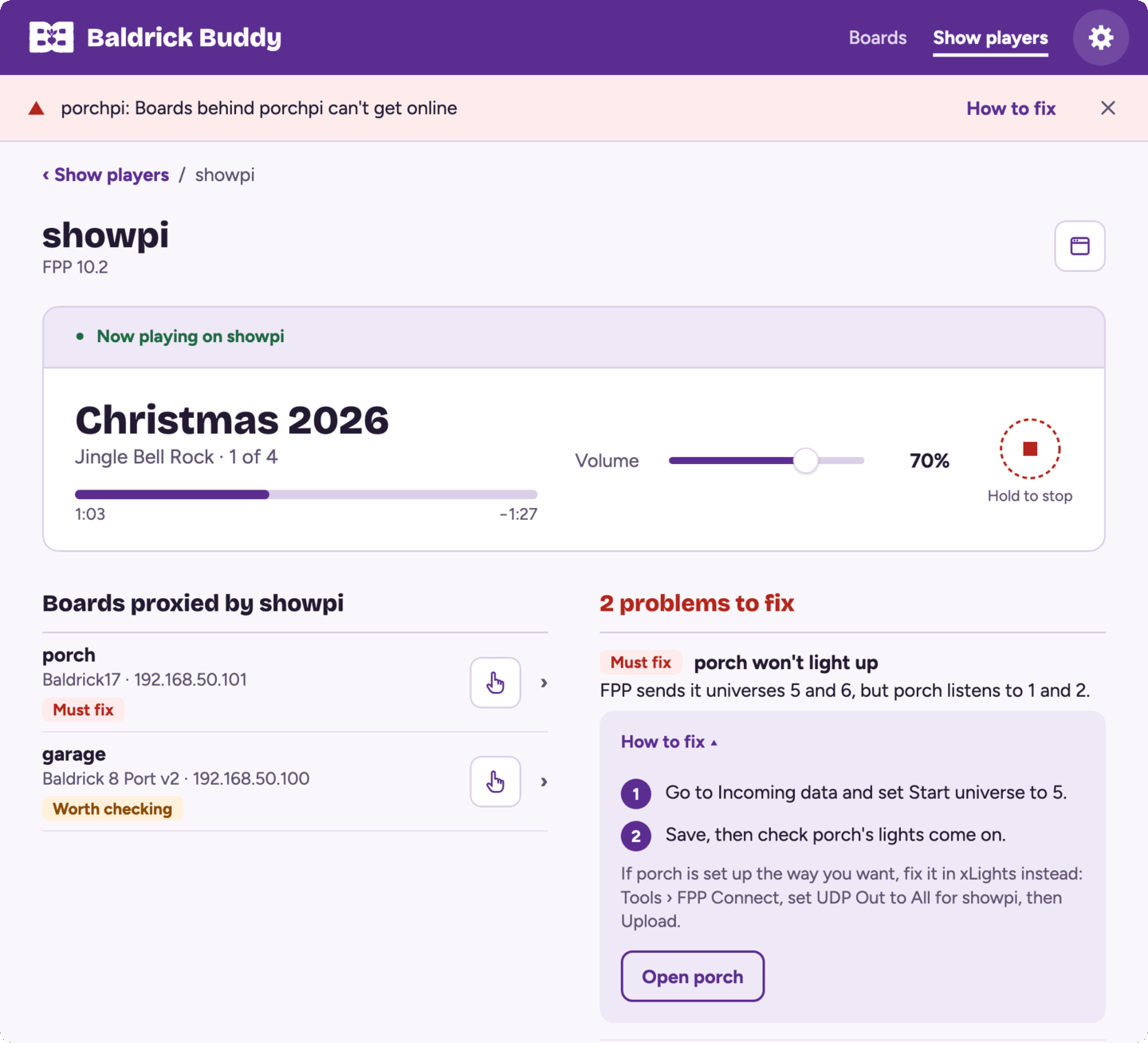
- Why a board won't light up. Buddy compares what FPP sends each board with how the board is set up: outputs switched off, the wrong universes, too few channels, or DDP and E1.31 at once.
- FPP Proxy. Boards plugged into an FPP's second network port appear in your board list and can be updated through the FPP. Buddy checks how the proxy is set up and tells you, step by step, what to change. More about FPP Proxy.
UpdatesFirmware updates you can follow
When new firmware is out, it shows against the board in the list. Update one board or all of them, including the ones behind an FPP, and follow each one until it's back: "porch-left is now on v3.8.8", or what went wrong and what to try next.
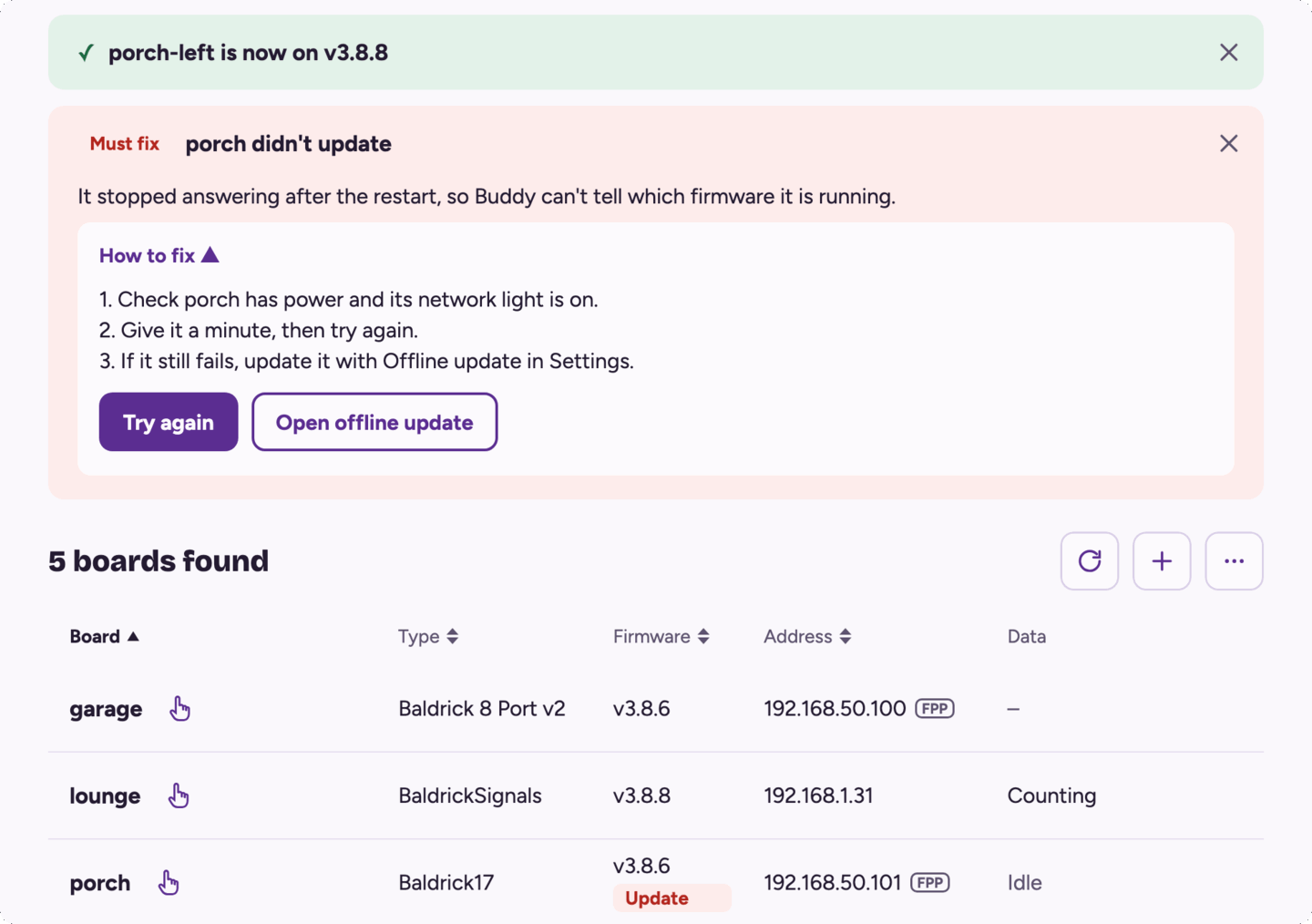
- Move boards between the main, beta and commercial release channels, one at a time or several at once.
- Offline update: download firmware while you have internet, then update boards on a show network that has none.
HelpGet help without the back and forth
When you're stuck, Get help collects what Buddy can see of your boards and show players: board types, firmware, FPP version, and network and output settings. It watches them for 30 seconds to catch data dropping out or a board restarting, then opens a Christmas Triage case on this site with all of that filled in. You just say what's wrong.
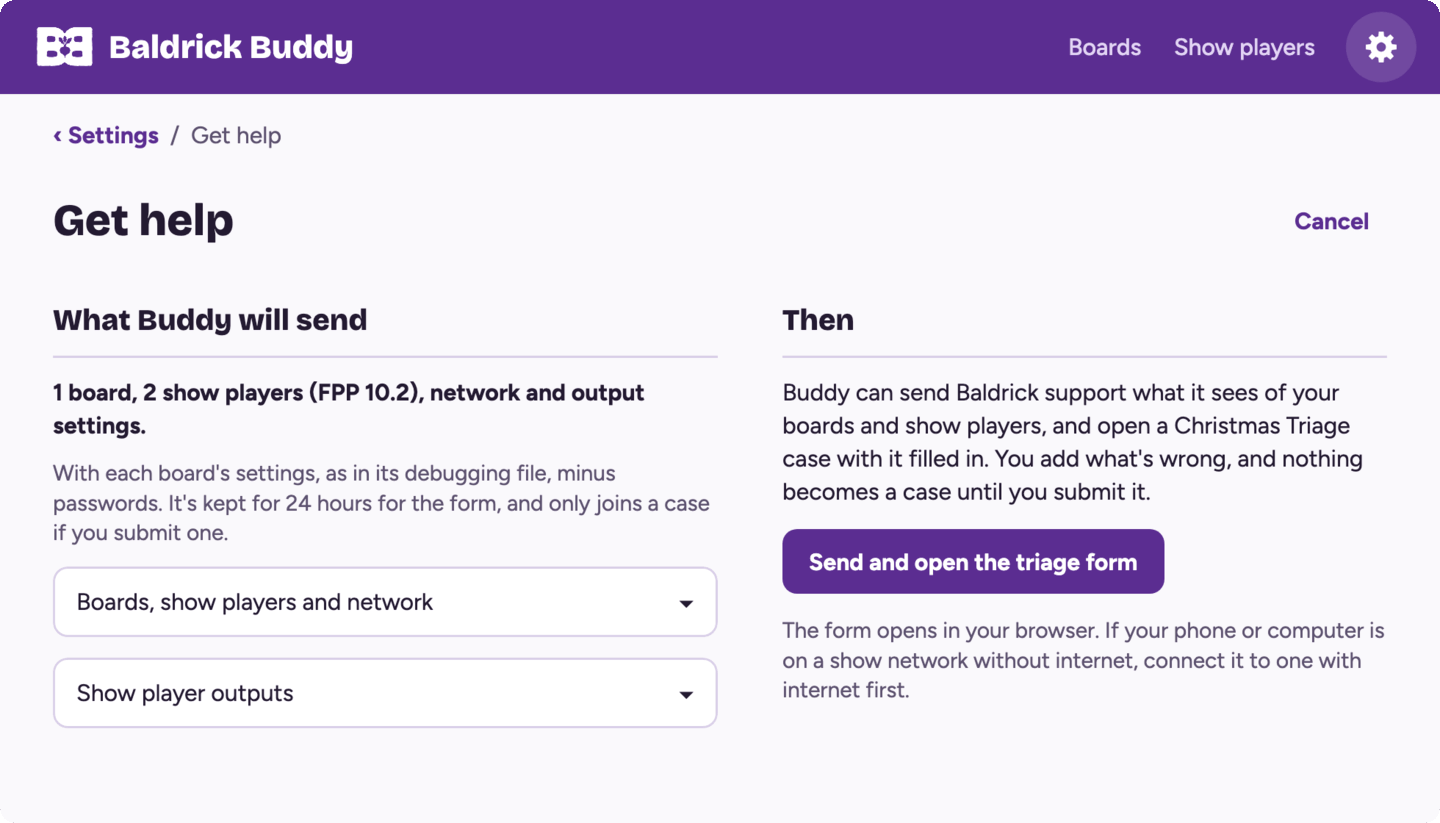
Nothing is sent until you press Send, and passwords are never included.
Buddy talks only to the boards and show players on your own network. There's no account and no cloud: it goes online to check for updates and download firmware, and sends a Get help report only when you ask it to.
DownloadGet Baldrick Buddy


On iPhone and iPad, get Baldrick Buddy from the App Store. On Android, get it from Google Play. On Windows, get it from the Microsoft Store, or download the installer. The Mac app is signed and notarised by Apple. The downloaded Windows installer and the Linux builds are not code-signed yet, so you'll need to approve them once on first launch — see the platform notes below.
iOSInstalling on iPhone and iPad
Install Baldrick Buddy from the App Store, then open it on the same Wi-Fi network as your boards. Download on the App Store.
If iOS asks whether Baldrick Buddy may find devices on your local network, allow it. Buddy can't find your boards without it.
AndroidInstalling on Android
Install Baldrick Buddy from Google Play, then open it on the same Wi-Fi network as your boards. Get it on Google Play.
If Android asks whether Baldrick Buddy may find devices on your local network, allow it. Buddy can't find your boards without it.
macOSInstalling on Mac
The Mac app runs on Apple silicon and Intel Macs with macOS 14 or later. It is signed and notarised, so it opens like any other app.
- Download and open the
.dmgfile. - Drag Baldrick Buddy to Applications.
- Open it. The first time, macOS asks you to confirm that you want to open an app downloaded from the internet.
- When macOS asks whether Baldrick Buddy may find devices on your local network, click Allow. Buddy can't find your boards without it.
If you declined that by mistake, turn it on in System Settings → Privacy & Security → Local Network.
WindowsInstalling on Windows
Install from the Microsoft Store, or download the installer below. Get it from Microsoft.
If you use the downloaded installer, Windows SmartScreen may warn that Baldrick Buddy is from an unknown publisher. This is expected for unsigned software.
- If you have an older Baldrick Buddy (0.3.x) installed, uninstall it first from Settings → Apps. The new app installs as a separate program.
- Download and run the
.msiinstaller. - When SmartScreen appears, click More info.
- Click Run anyway.
- If Windows Firewall asks, allow Baldrick Buddy on private networks so it can find your boards.
If the file was blocked before you ran it, right-click the downloaded file → Properties → check Unblock at the bottom of the General tab → Apply.
LinuxInstalling on Linux
Linux builds are distributed as an AppImage (or similar). The app is not signed with a distribution key.
- Download the AppImage (or package).
- Make it executable:
chmod +x Baldrick.Buddy_*.AppImage - Run it:
./Baldrick.Buddy_*.AppImage
Some desktop environments show an "untrusted application" prompt — confirm to run. If your distro blocks unknown binaries entirely, run from a terminal so you can see any policy errors.
GuideUsing Baldrick Buddy
- Install Baldrick Buddy and open it on the same network as your boards. If it asks to find devices on your local network, allow it.
- Your boards appear as they're found. Click the refresh button to look again (pull the list down on a phone), or + to add a board by its address.
- Click a board to open its page. Right-click it on a computer, or long-press it on a phone or tablet, to poke it, open its web page, copy its address, update it or forget it.
- Click Update all, or the update on a board's row, when new firmware is out.
- Switch channel and Get help are in the Boards menu (⋯). Offline update is in Settings, the gear at the top.
- On a computer, ⌘R or Ctrl+R looks for boards again, ⌘F or Ctrl+F jumps to search, and the arrow keys and Return move through the list.
HelpSupport
Having trouble with Baldrick Buddy or a firmware update? Our support team and community can help.