
Find answers to the most commonly asked questions about the Baldrick17 controller.
What is Hodgical Mode?
The Hodgical Test is a mode on the Baldrick17 which allows for easy debugging of pixel and model issues.
The Hodgical Test runs the RGB cycle on each model on a port but each subsequent model starts with the subsequent colour.
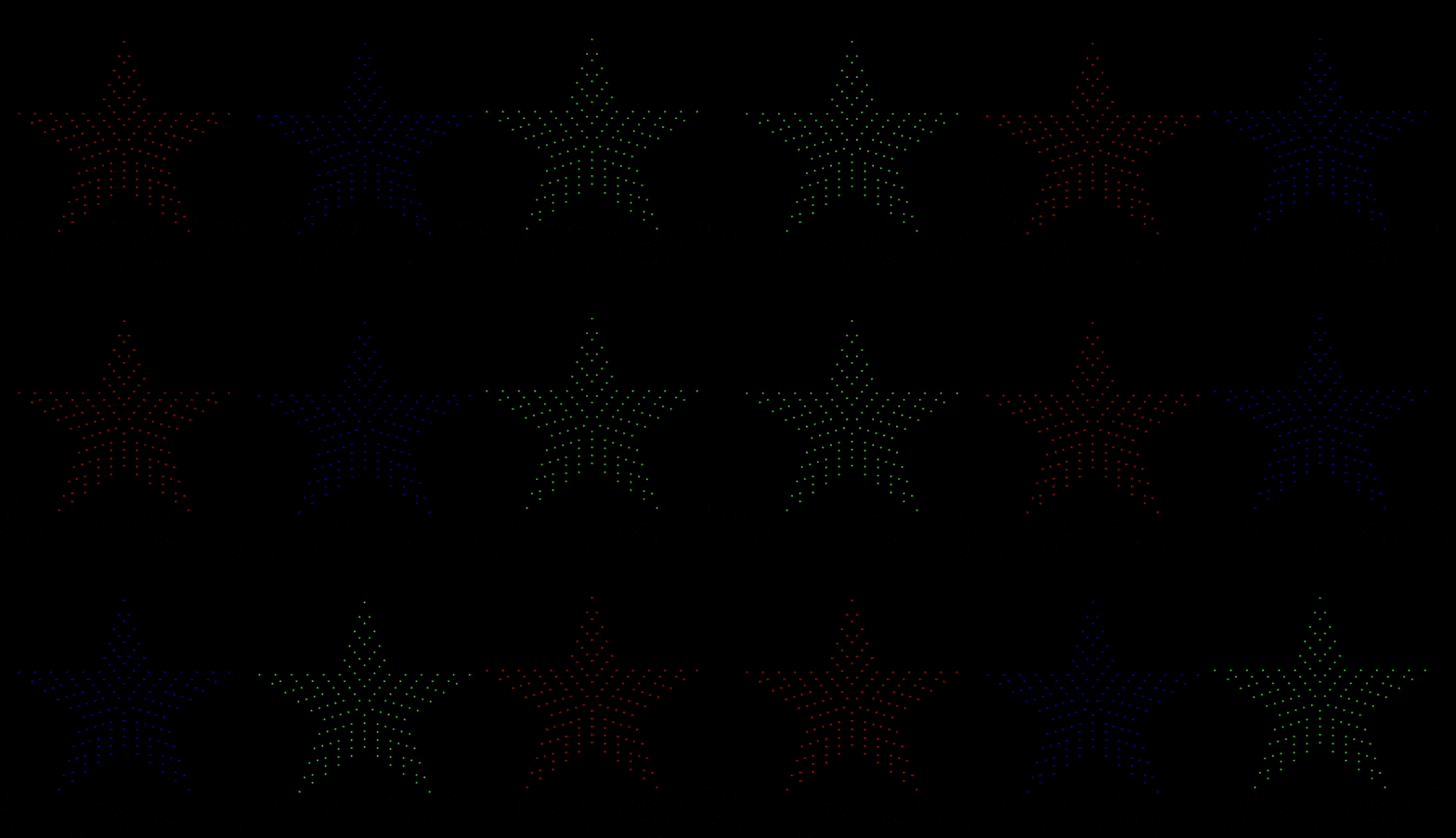
You can see here these three stars on the same port.
- Star 1 starts with RED, then goes GREEN then goes BLUE
- Star 2 starts with GREEN, then goes BLUE then goes RED
- Star 3 starts with BLUE, then goes RED then goes GREEN
If we had a star four that would go RED then GREEN then BLUE
Why Hodgical Mode?
This allows us to quickly:
- Check if pixels are failing on any specific colour value
- Confirm the models are set up correctly (is half of your snowflake the wrong colour)
- Put something up on the house when someone comes over and 'wants to see it working'
No, I mean why did you call it Hodgical?
Because it was an idea from Dom Hodgson (although obviously Pete did all the work) and so obvious his ego wouldn't let it be named something NORMAL..
Why RGB, why not a colour wash?
A colour wash starting at different times on props can be overwhelming with colour and takes longer to debug issues (it also doesn't look as good as you might think)
Where is the WiFi?
You see the ESP32 chip and instantly think WIFI enabled, however at the moment, after testing latency and throughput over WIFI, we are focusing on the Ethernet connection at this time.
The Baldrick17 has been designed for up to 2250 channels per port (which is 750 RGB pixels at 40fps)
That's not to say we will never support it, just don't buy this board for the WIFI support.
If WIFI is a MUST HAVE then one option some of our users are using is via FPP proxy
How do FPP API Commands work?
FPP comes with a really useful API which lets us do things like play sequences, change the volume and more remotely.
Combining that API with the Baldrick button URL boxes is a simple way of adding interactive elements to your show.
The first thing we need is the IP Address of your FPP installation, in this case we are using 192.168.1.50 but please replace this when adding to your button config.
Commands are sent to the URL /api/command/command name/options
Start the show
If you want to give someone a magical moment and be able to start the show by pressing a button, you must first get your show playlist name (in this case we are using Show Time as our playlist name but please replace it with yours)
You set your button command to go to
e.g. http://192.168.1.50/api/command/Start Playlist/Show Time
This will start the playlist everytime someone presses the button, which is great.. until some little sh... visitor presses it again and again, to solve that we can use the IfNotRunning setting.
Add /false/true to the end of that URL (The false tells FPP not to repeat the playlist and the true tells it only to play if it isn't already playing)
e.g. http://192.168.1.50/api/command/Start Playlist/Show Time/false/true
Warning, if another playlist is playing whilst this button is pressed, it will interupt it
Sound on button
Lets say that you wanted to only play the sound on your show when someone presses a button and that continues till either the end of the song or playlist.
You set your button command to go to
e.g. http://192.168.1.50/api/command/Volume Set/70
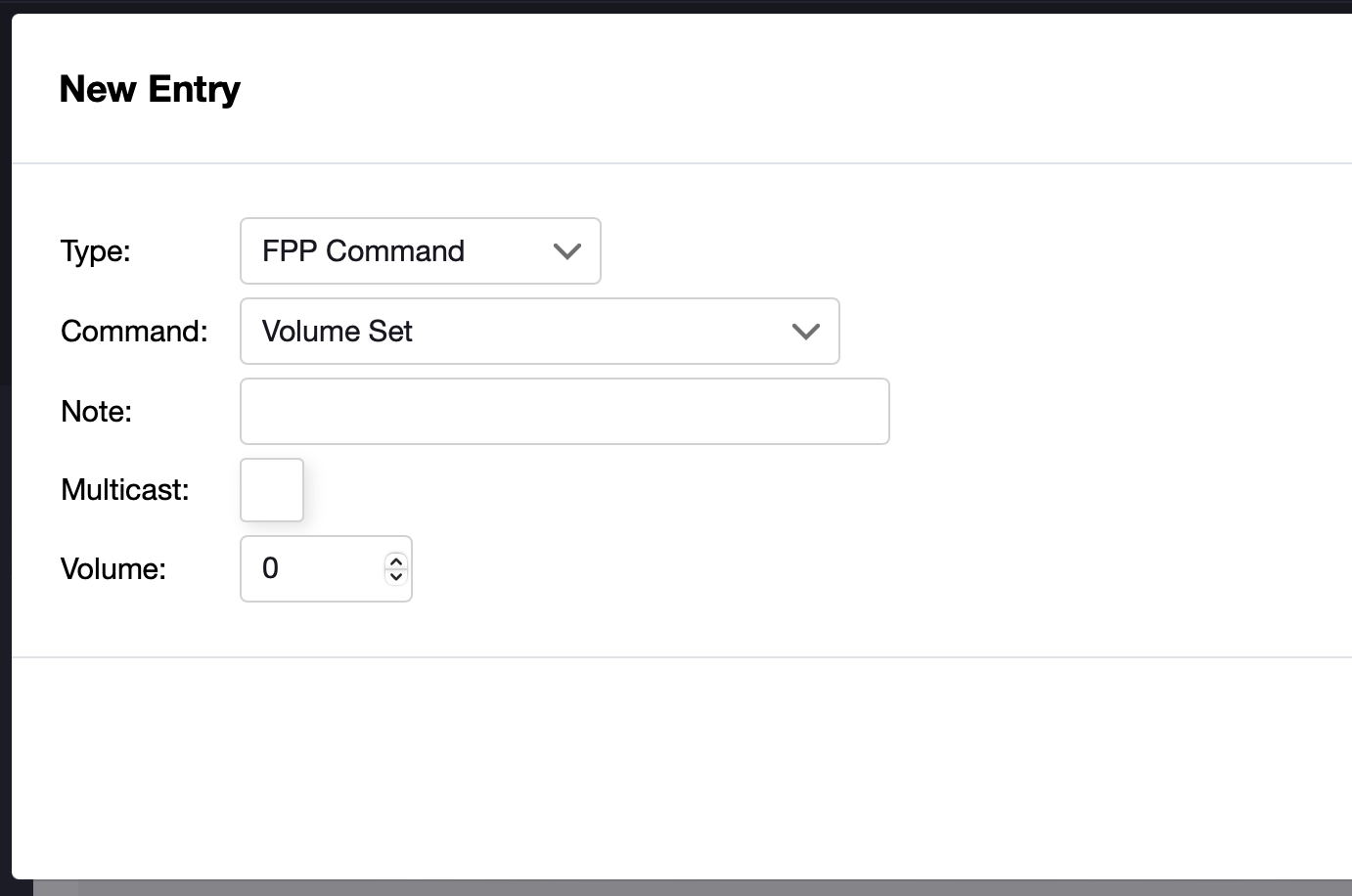
Then at the bottom of each playlist (or song in the playlist) you just add an entry for FPP command which sets the volume to 0
GS8208 Pixels Data Issues
Some of batches of 4 wire pixels (double data) require a constant source of data, otherwise some genius thought it would be a great idea to have the default to a test mode on full 100% brightness..
The most common of these are GS8208 pixels.
You can set your Baldrick17 to the Paint it Black test mode which will stop that but its a pain in the arse to change everytime you stop your show.
For those using FPP you can configure FPP to output channel data at all times.
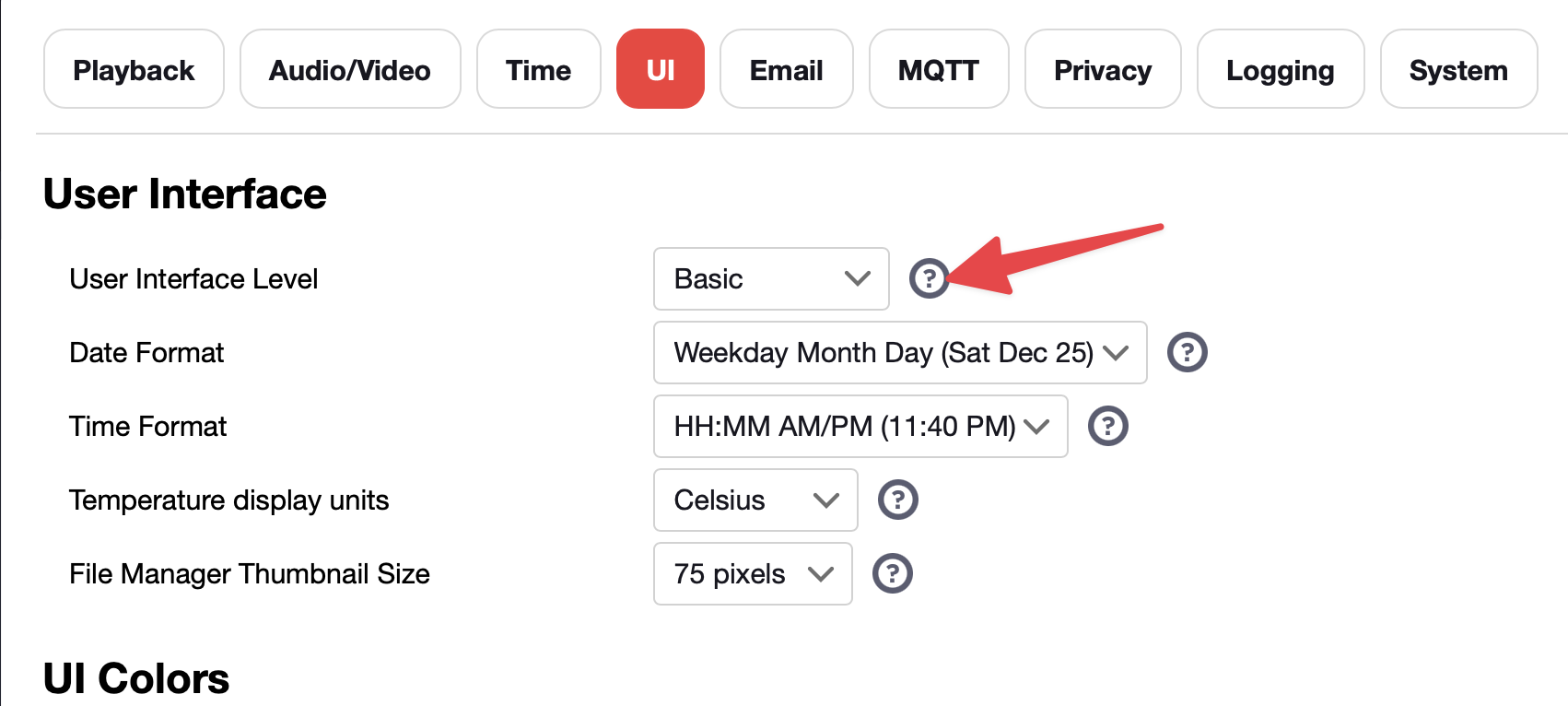
Firstly you need to enable the Advanced UI by going to Settings > UI > Interface level and switching that to Advanced.
Then head to the Input / Output tab and tick the box which states "Always Transmit Channel Data"
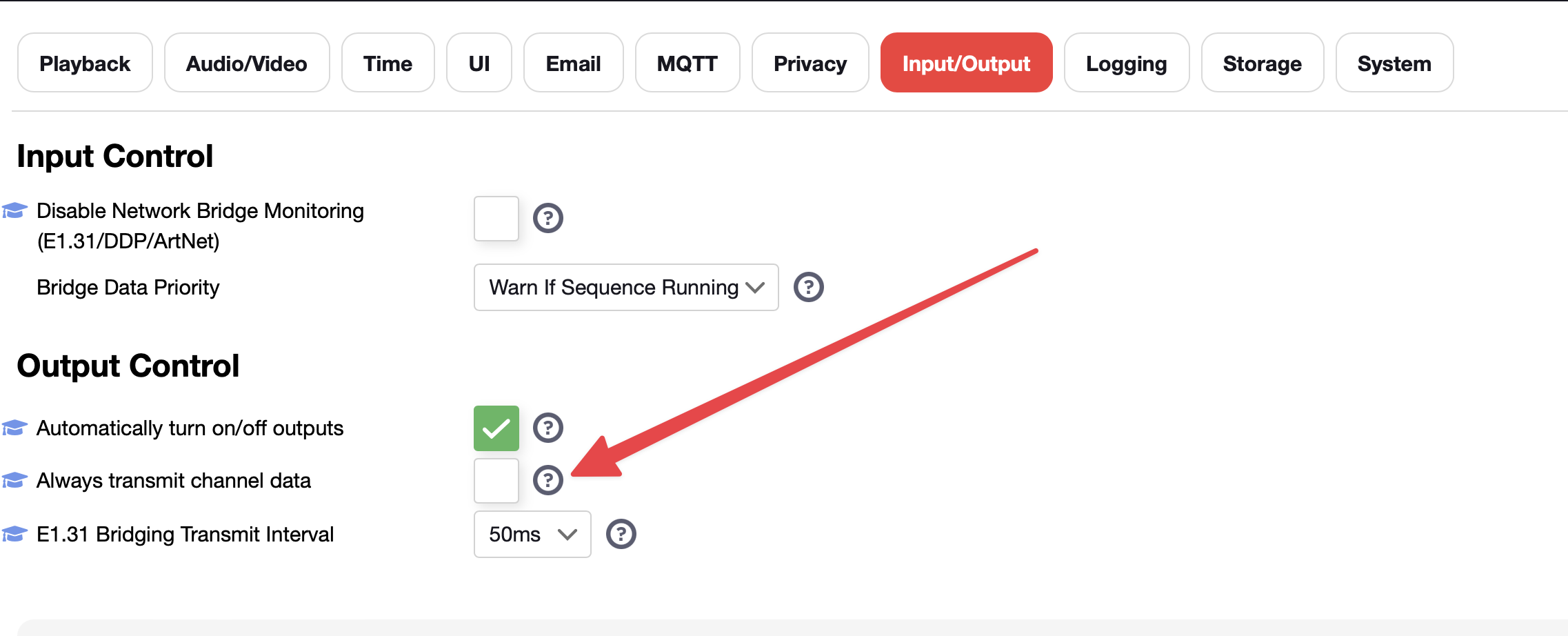
This means FPP will keep outputting data to the pixels even if there isn't a sequence playing.
As of writing we are currently in a seasonal feature freeze for the Baldrick family which means no new updates will be posted unless they are firmware breaking, however we will review how we can work on this on a controller level once this is over
Is This Just WLED?
We've had a lot of questions (3) asking just how we've got 750 RGB pixels at 40FPS on WLED and the honest answer is that we don't.
We love WLED and use it in our other projects, early versions of the Baldrick used it as well however we realised that there was a lot of functionality in WLED that we were never going to use and those functions take RAM and storage.
With that in mind we made the decision to write our own firmware with three principles in mind;
- A minimum 600 Pixels per port at 40FPS (which actually ended up being 750 RGB per port!)
- A really simple (& Fun) UI
- Focused core features dedicated to Seasonal Lighting
Whilst it's true that the Baldrick17 doesn't have every feature of some of the other boards, or the WLED software.
In the words of those woodworking siblings Karen and Richard - We've Only Just Begun
How do I connect a receiver?
One of the questions that we often get (from the made up conversations we have with fake customers) is how do I expand the network with receivers?
The simple answer is that you don't
When designing the Baldrick17 a thought occured to us, a receiver requires a network connection and power, which is exactly what a Baldrick controller requires!
So rather than buy a receiver and have to deal with splitting down the maximum pixels allowed per port, you just buy another Baldrick and plug it into your network for the same price!
If you can't find the answer here, check our generalFAQs or read theAsking for Help checklist before posting — it covers troubleshooting steps and what to include when seeking support.